How to Plan Exam Revision Without Hiding Unfinished Work
A revision plan needs both deadlines and an honest estimate of the work left. Follow this walkthrough to identify an overloaded schedule before it turns into last-minute cramming.
Estimate the work still left, not the size of the textbook
List the tasks needed for each topic: review a weak concept, attempt questions, check answers and revisit mistakes. Estimate the remaining study minutes for that work. Do not enter time already spent as if it still needs to be scheduled.
Group topics at a useful level. A whole subject may be too broad to estimate, while dozens of tiny items can make the schedule hard to read. The tool supports up to 40 entries, with each exam one to 90 days after the chosen revision start.
Set daily capacity after allowing for breaks
Choose the study minutes you can realistically use each day. If an evening lasts two hours but includes breaks and other commitments, the available focused time may be lower than 120 minutes. The planner applies one capacity to every day; it does not know which weekdays are busier.
Use the timetable builder to decide where the scheduled minutes can fit. If daily availability varies substantially, treat this allocation as a first draft and adjust it around your actual calendar.
Use the remainder as a decision signal
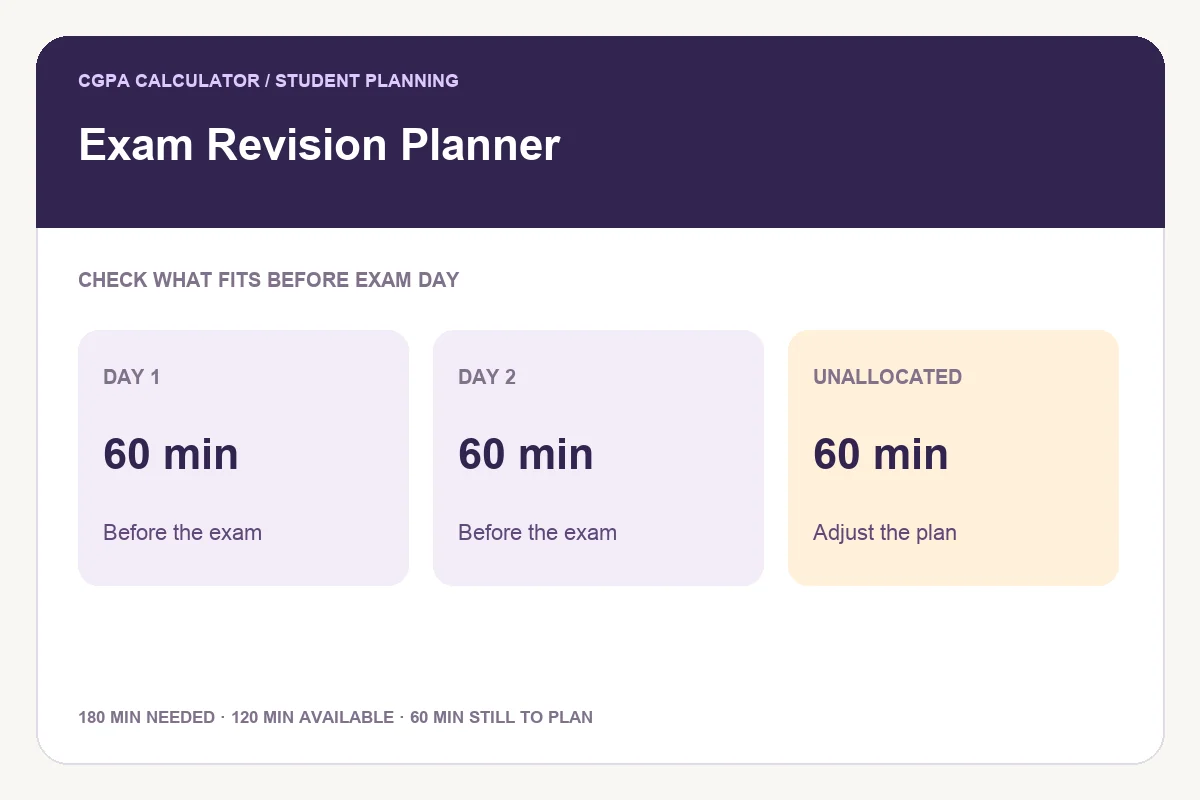
With three eligible study days and a capacity of 60 minutes per day, 180 minutes are available. If a topic needs 200 minutes, 20 minutes remain unallocated. The planner shows that shortfall instead of moving work onto or beyond the exam day.
An overload is a prompt to change the plan: start earlier, narrow the scope or revise your estimates. Increasing capacity helps only if those additional minutes are genuinely available. The schedule orders earlier exams first; higher priority breaks ties between equal exam dates.
200 requested minutes − 180 scheduled minutes = 20 minutes still unallocated
Make a scheduled session active
Use part of a session to recall information without notes or attempt an unfamiliar question. Check the answer, identify the error and decide what to revisit. The schedule reserves time; it cannot tell whether you have understood the material.
Where practical, revisit important material across different days. This tool rotates eligible topics in blocks up to 45 minutes, but does not guarantee a particular spacing interval. Review the generated dates rather than assuming the allocation is an optimal learning schedule.
Update the estimate as you learn
After practice, some topics will need less time and others more. Update those estimates and regenerate the plan. Keep unallocated work visible in the exported report so the next version reflects the real workload.
Save in the current browser to resume later. Download PDF includes the complete plan; very long PNG exports are explicitly labelled previews. Review the share dialog before including topic names and exam dates.
Try the exam revision planner
Enter your own values below, or open the full exam revision planner page for its complete usage guide.
Further reading on effective studying
Reviewed on October 24, 2026.
Worked examples use simplified calculation models. Check your institution’s current regulations, grading scale, rounding rules and official records before relying on a result.